
Is SwifDoo PDF the Best Deal for Individual Windows PC Users – Unpacking the Features
All Windows users go through this. After installing a PC, they are bombarded by pop-ups and guided tours that are designed to send down the new user into an endless drudgery of opening, updating, logging in, and possibly re-authorizing a software that’s supposed to make PDF files management a cakewalk – something that SwifDoo does, without a fuss.
SwifDoo is a feature-rich Windows PDF editor that lets users do a lot more than PDF editing. It helps them create, edit, merge, convert, sign, protect, and share their PDFs. It comes with a lifetime license, which means users do not have to worry about renewals (and the annoying reminders that precede). This makes the simple, no-fuss software toolkit ideal for professionals, students, gig workers and virtually anyone trying to get a work-life balance.
Its lifetime license puts SwifDoo ahead in the race. This means once you own it, you own it. It works online and offline, and also offers add-on features such as password protection.
Pros&cons
SwifDoo PDF Strong and Weak Sides
My first look at SwifDoo PDF
What Is SwifDoo PDF?
Born in 2017, SwifDoo by China-based Chengdu Aishang Office Technology Co. is already a Microsoft Partner company that’s close to completing a decade of success in a highly competitive software market segment. Primarily built for Windows users, the software toolkit is now also available for Mac, iOS, and Android users as well.
While the desktop version is the most downloaded one, SwifDoo also comes as a sleek app for iOS and Android users. The mobile version also comes with multiple reading modes so the users can view, edit, and annotate PDFs without eye strain.
The SwifDoo mobile apps also come with a flurry of easy-to-navigate tools that help users to browse PDFs effortlessly. The fit-to-screen experience is seamless, to say the least. You can insert, remove, rotate, and rearrange PDFs easily. You can also add texts and sticky notes and even highlight and draw on your PDFs.
I downloaded the Windows version of the software and found that it has all the promises of becoming a powerful tool for students and teachers. This is because they can easily design or edit their assignments using the handy tool. But it doesn’t end there.
It also has some collaborative features, which makes it ideal for office settings. However, since it can be used on only up to two devices with one license, I think it’s not really a great choice for mid-size or large businesses.
SwifDoo, as I found, is more of a toolkit than a PDF reader or converter. You can do many things with it, and some of them are not heavily advertised as well. You can edit, compress, convert, create, annotate, sign, protect, merge and split PDFs with SwifDoo. You just need to know how to optimally use it.
If you are keen on testing out how SwifDoo puts all the tools in one basket, you can download it for free and use it for seven days, after which, you would need a license. When the free trial expires, you won’t be completely shut out. You will still be able to view PDFs, take snapshots, and use up to 1 GB of cloud storage.
In case you want to keep and use it forever, get the perpetual license for $96.75. The Pro AI license costs a little more and you can ask 1000 questions to its AI bot in a month. I feel this is unnecessary as the company could integrate its AI agent into its regular Pro plan, since this has become the norm everywhere. There are also quarterly and 2-year plans, and also an enterprise plan that again supports only 10 users, which makes it fit for only small businesses.


It is important to note that if you are a Mac user, you will have to settle for a basic version which lacks advanced features such as AI chatbot, cloud syncing, and conversion. This is because the Mac version is fairly new, and the company will hopefully add these features to this version as well. For now, I don’t recommend it to Mac users.
Features at glance
SwifDoo – What Are Its Core Features?
SwifDoo is a complete toolkit that packs in a bevy of features and functionalities. It’s not just a PDF reader, and it’s not only a conversion tool either. It offers all of these basic functionalities, plus a lot more. Here’s what you can do with it.
PDF reading and viewing
You can open a PDF file with SwifDoo and read it in side-by-side or in dark mode. You can also open a file in full screen or view it in presentation mode. Having eye strain and don’t want to read a PDF document? You can let the software read it aloud for you. You can also perform a word count and translate the text in the PDF.
Searching inside a PDF document
SwifDoo doesn’t only allow you to do a word or phrase search inside a document, you can also search within an image-only PDF. For that, you just need to apply OCR. The software will prompt you to perform an OCR and then find a word from the converted document.
Zooming in an out
The easiest way to zoom in or out is through the SwifDoo navigation toolbar. You can find it both at the top and the bottom of the screen. Use the -/+ signs to change the percentage. This is similar to how you zoom in/out inside a Microsoft Word document.
Page navigation
SwifDoo makes it extremely easy to navigate to specific pages of a PDF document. If the document has a table of contents (TOC), you can reach any page by clicking the directory. However, if it doesn’t have a TOC, you can still use SwifDoo’s Extract TOC feature and create one. You may also access pages through thumbnails, which you can find inside the sidebar.
Bookmarks
SwifDoo lets you add bookmarks to a PDF document from anywhere. You can utilize the Extract TOC feature to create bookmarks. Not only that, you can even add sub-bookmarks.
PDF editing
The most sought-after feature of any PDF software is its editing tool. SwifDoo doesn’t disappoint on that front either. You have four edit modes to choose from: block, line, object, and paragraph). You can edit the text just the way you do inside a word document. You can also add images and even backgrounds to PDF documents.
My personal experience using SwifDoo PDF
PDF Editing with SwifDoo – How Was My Experience?
I started with a regular text-based PDF rather than a document created specifically for the test. The Windows version provides several editing modes and supports direct changes to text, images, and links.
Editing Existing Text
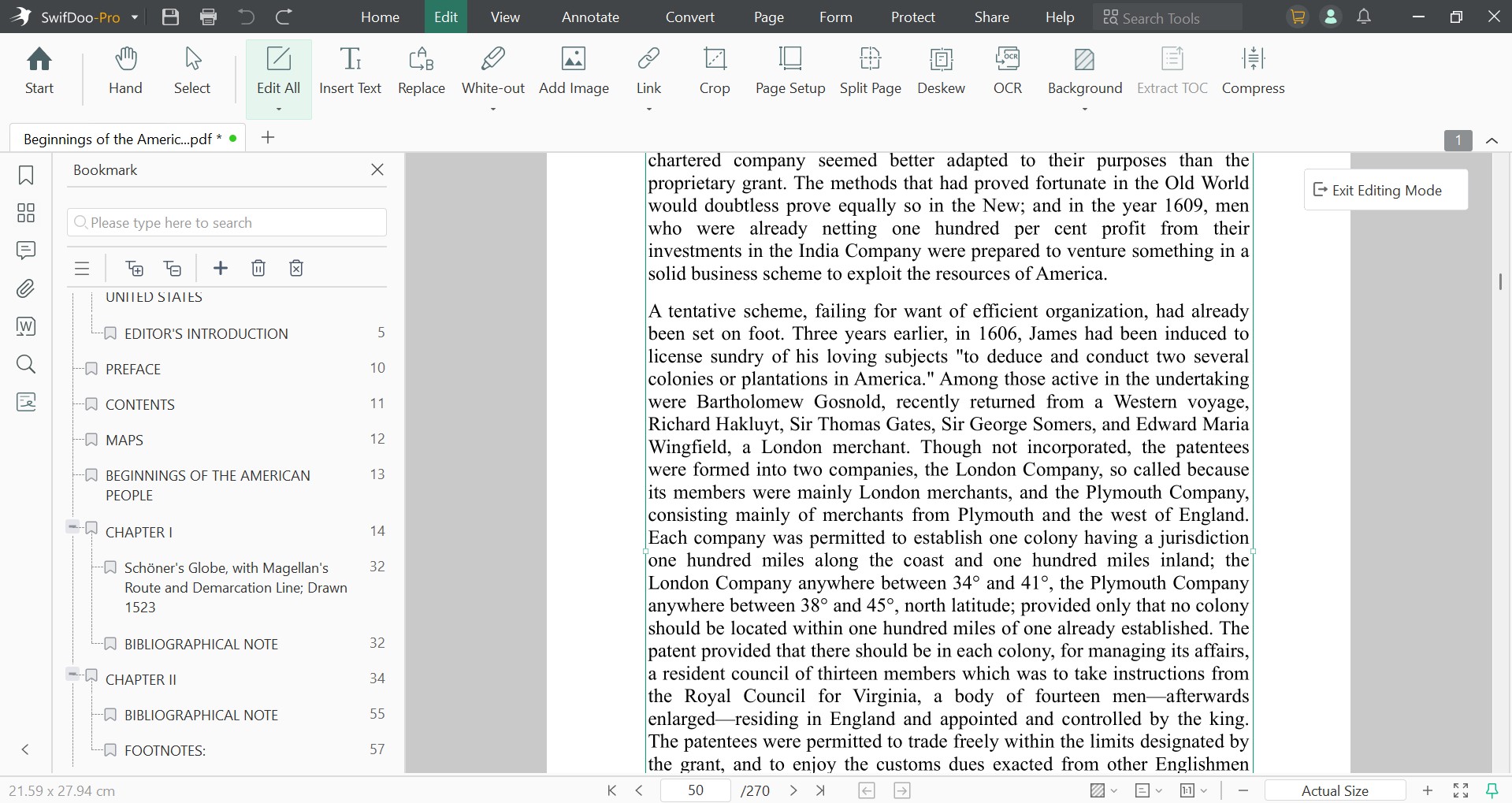
After opening the SwifDoo application, I opened the “Edit” tab, selected the text editing option, and clicked inside an existing paragraph. SwifDoo picked up the text as editable content instead of forcing me to cover it with a new text box.
I could delete words, type replacements, and rewrite entire sentences. On a basic business PDF, the surrounding text adjusted reasonably well when I made small changes. Longer replacements were less forgiving.
Changing Font Size and Color
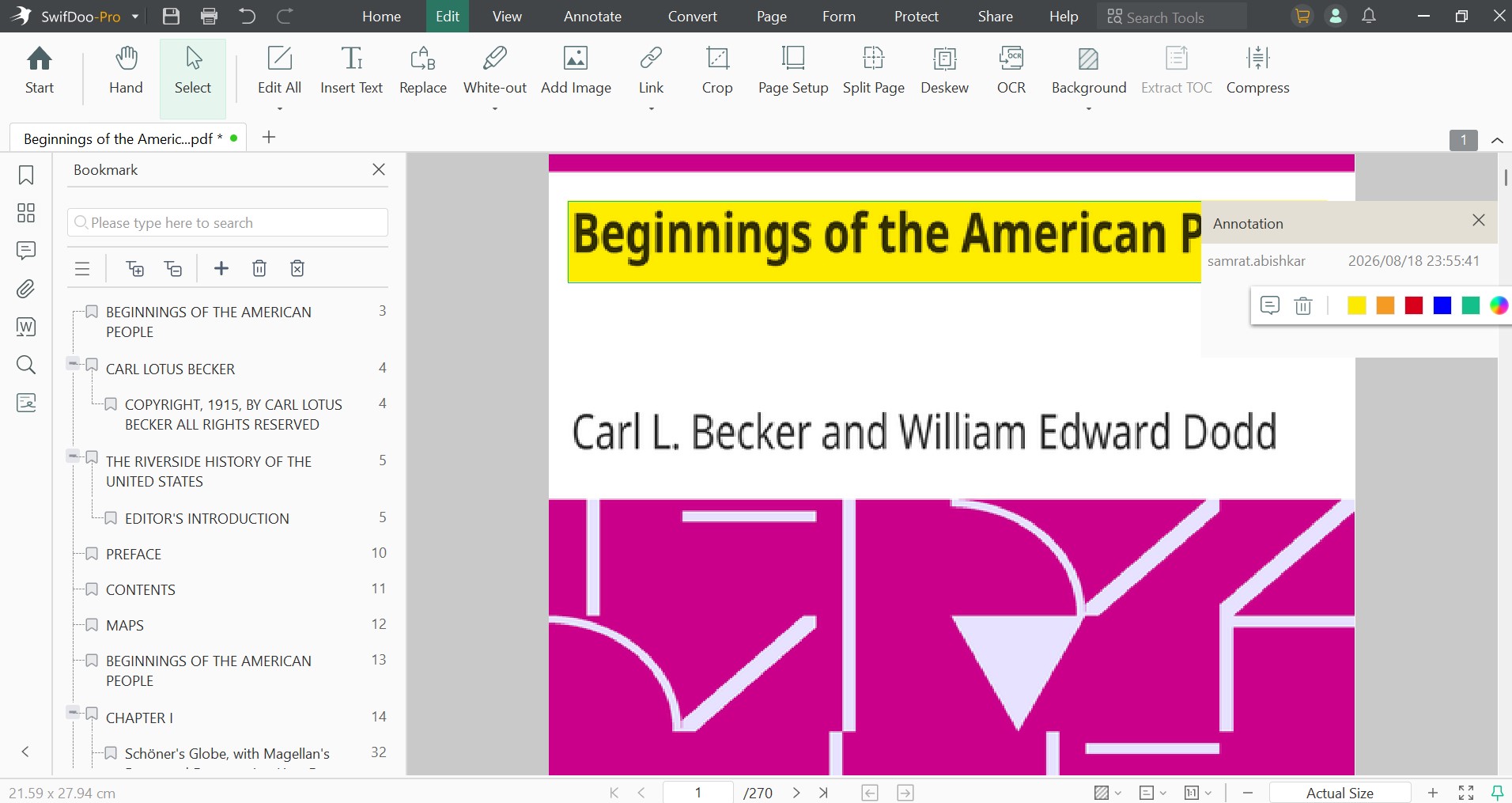
I could also switch the font, adjust its size, and change the text color from the editing controls. These options behaved much like the corresponding controls in a word processor.
Font replacement worked well with common fonts installed on my PC. The harder part was matching the less common fonts already embedded in a PDF. If the exact font was unavailable locally, I had to pick the closest substitute, and that could alter character widths or line breaks.
Changing font size and color was easier. Both took effect immediately, which made it simple to compare the edited text with the surrounding content before saving.
Editing Images and Moving Objects
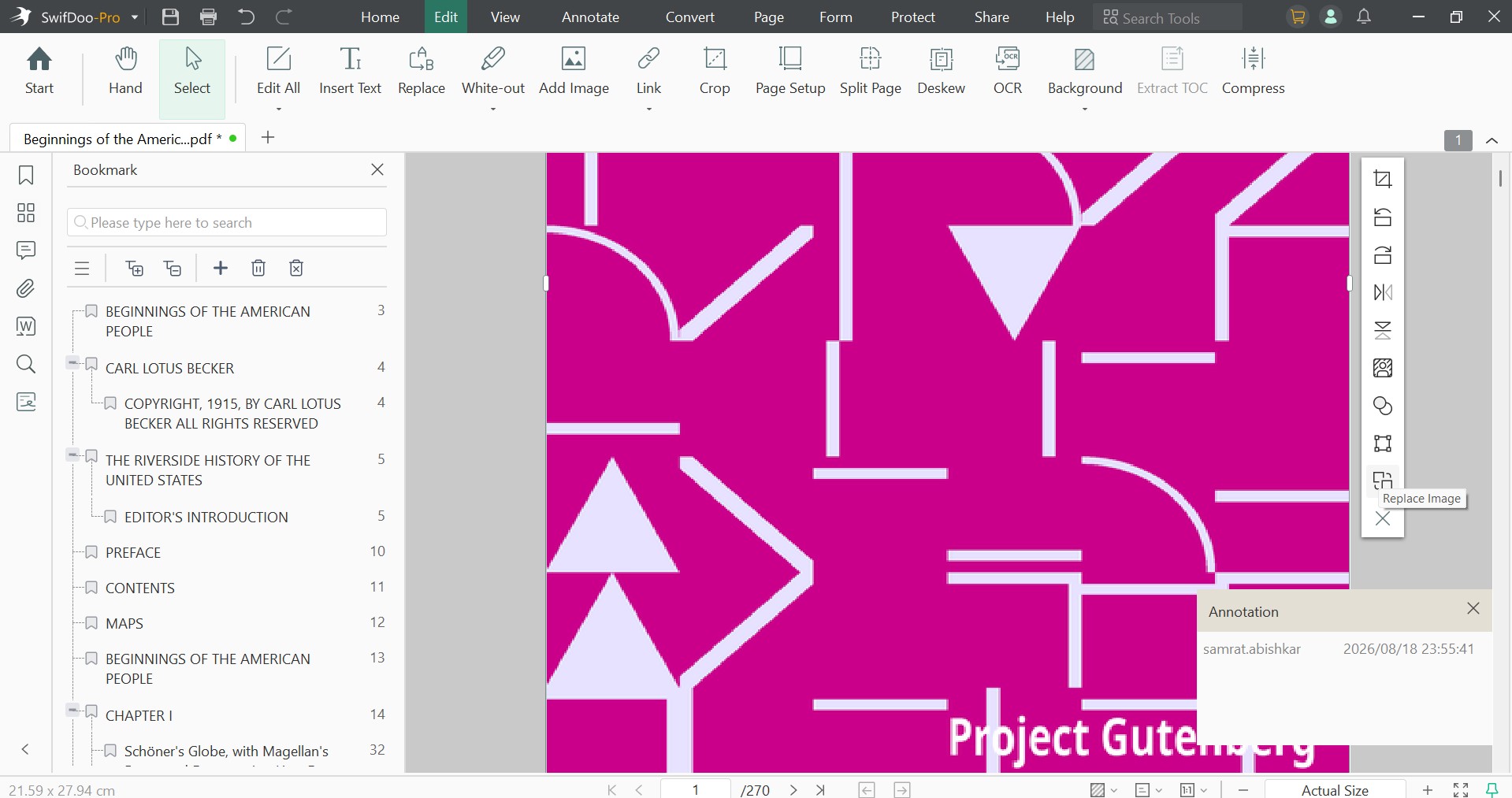
Images are treated as editable objects by SwifDoo. SwifDoo also provides transparency controls for images.
Moving simple objects around was responsive in my tests. I clicked an element and dragged it into position without having to rebuild the page. Precision becomes more important on crowded layouts, though. Moving one object by eye can leave it slightly out of alignment with neighboring content.
However, it is not full image editor. At best, you can change placement, size, rotation, and similar PDF-level properties, but I would still recommend using a dedicated graphics application for detailed photo retouching.
Adding Text and Images
Adding new text should be a cakewalk. If you have used MS-Word, you already know how to do it. No training needed!
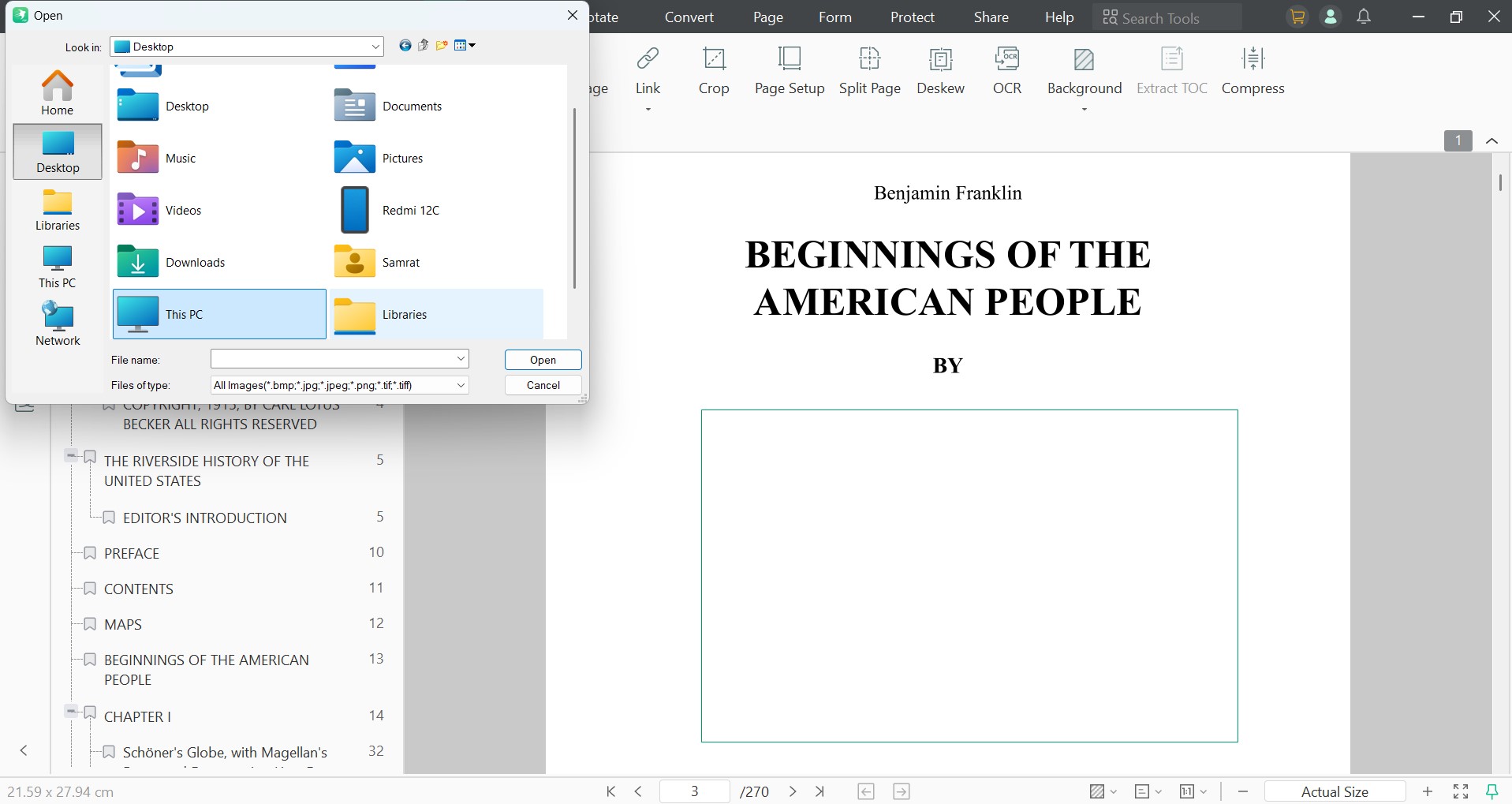
Adding an image worked in much the same way for me. After choosing an image file, I could drop it onto the PDF and resize or move it afterward. I tried this with a logo and a regular JPEG photograph. Both went in without causing visible changes elsewhere on the page.
Adding Links
SwifDoo let me add hyperlinks and assign them to areas of a page. The software supports links to PDF locations as well as external files and webpages.
Setting Headers and Footers
I added a simple footer and page numbering to a multipage PDF. Once set up, the numbering carried across the selected pages without requiring me to edit each page individually. This was much faster than manually adding text boxes page by page.
Annotating and Marking up
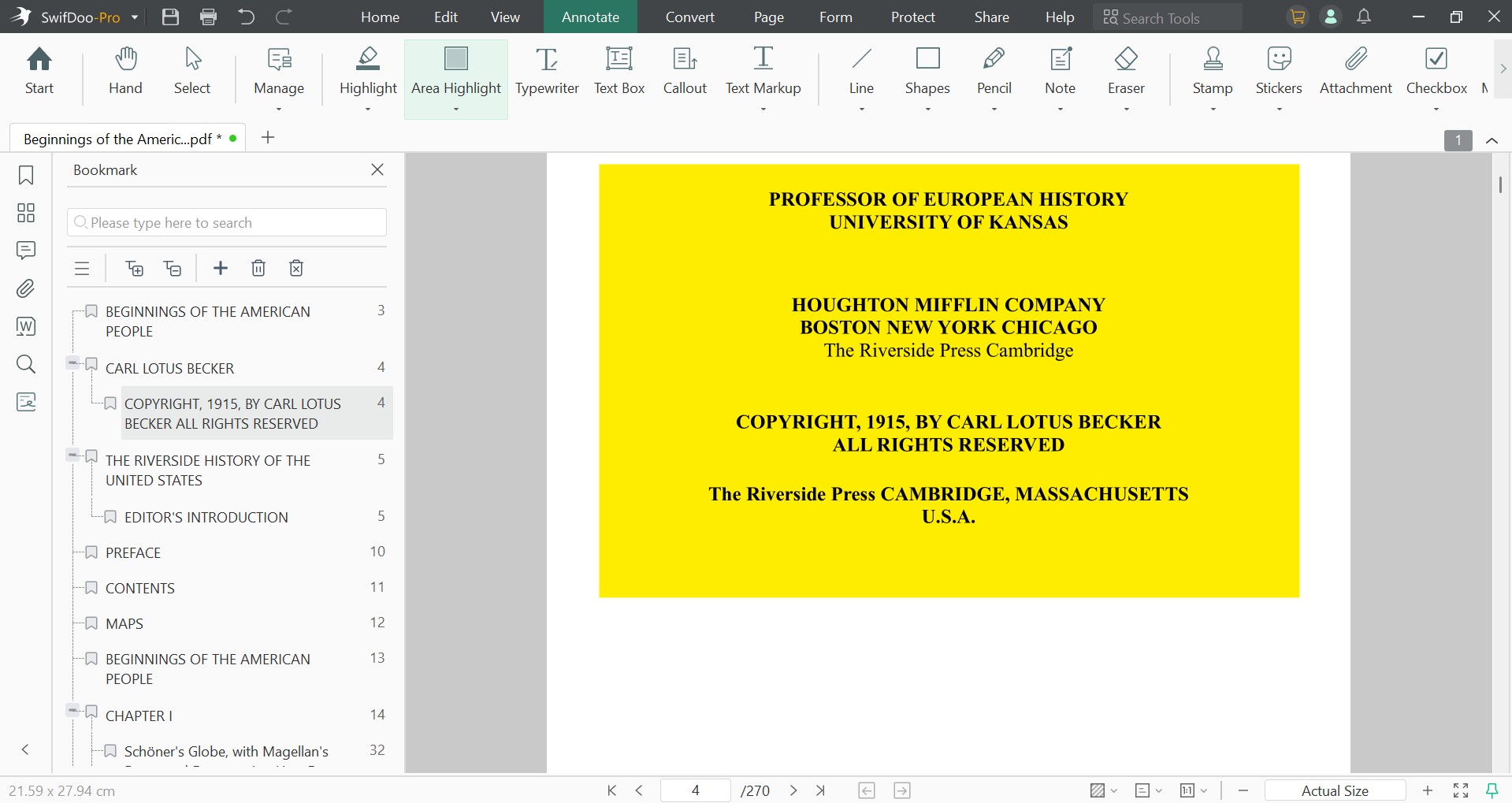
Annotation, as you know, is separate from editing the PDF’s underlying content. SwifDoo supports comments, highlights, shapes, and other markup tools. I ran through these tools on a document with several pages of continuous text.
Highlighting worked as expected. I selected text and applied a highlight without altering the text itself. You can underline or strike through text just as you need.
The annotation set is broad enough for individual proofreading and routine document review. I would not put SwifDoo in the same category as a dedicated collaborative document platform, though. SwifDoo Cloud can be used to store, share, and access PDFs, but the desktop application is centered more on PDF processing and markup than on live, multiuser editing.
PDF Organization
SwifDoo PDF Organization
With SwifDoo, I could combine multiple PDFs and could arrange them in the order I wanted before producing the final document. SwifDoo officially supports merging both PDFs and images into a single file.
Splitting worked in the opposite direction. I could break a larger PDF into smaller files rather than repeatedly saving copies and deleting unwanted pages.
Extracting individual pages was useful when I wanted to pull out part of a report without disturbing the original. Page deletion was equally direct. I selected the pages I did not need, removed them, and saved the edited document.
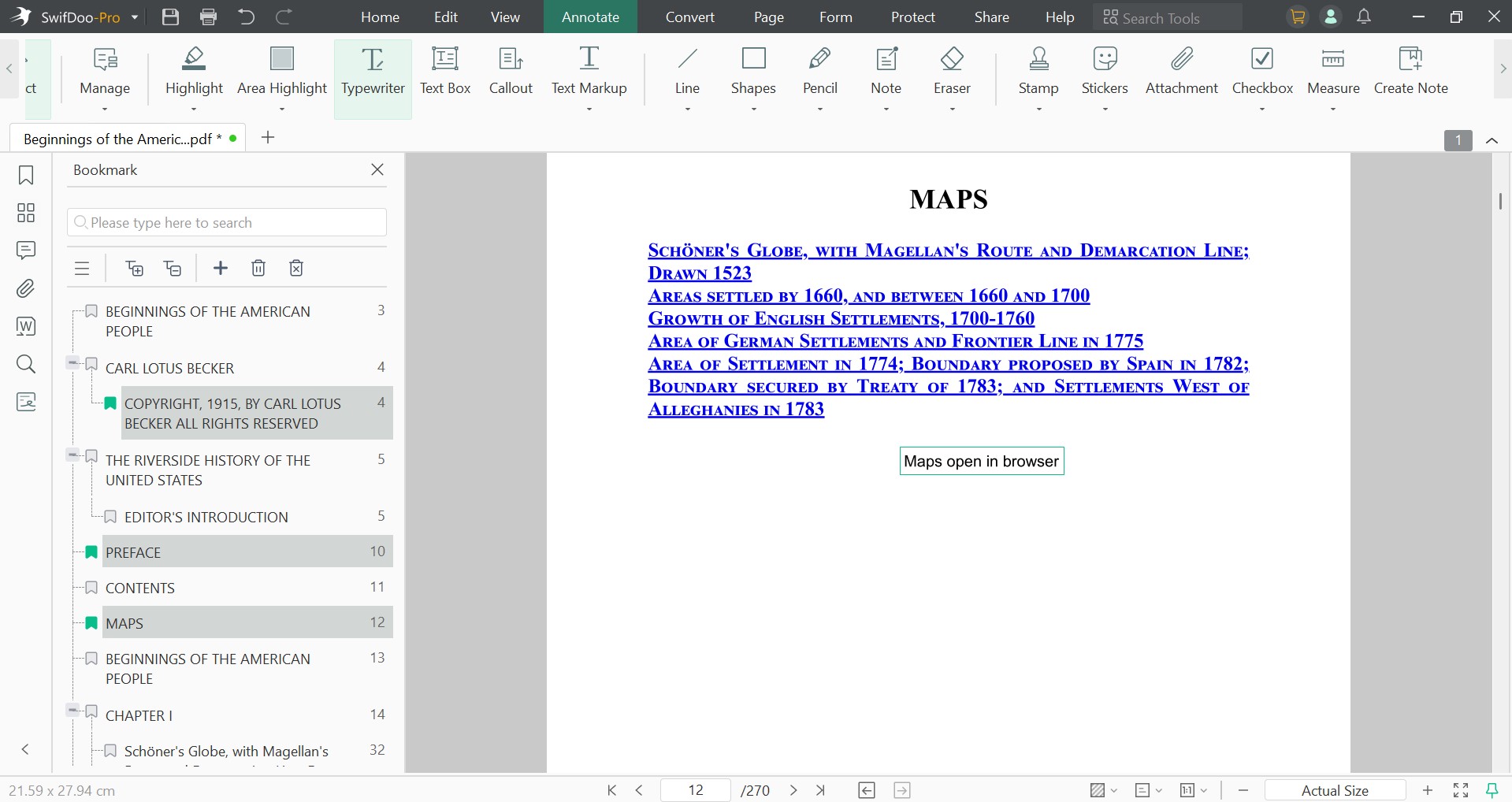
Reordering pages mostly came down to moving the page thumbnails into the required sequence. Rotating a page was quick and worked well for scanned documents where one or more pages had been captured in the wrong orientation.
I could also insert additional pages into an existing PDF. This came in handy when I wanted to add material to the middle of a document rather than combining two complete PDFs.
Replacing a page saved me a few steps when only one page of a larger document had changed. Instead of rebuilding the entire PDF, I could swap the old page for its revised version.
Cropping was similarly uncomplicated. I used it on a page with excessive margins and another scan with unwanted material around the edges. In both cases, I could tighten up the visible page area without having to convert the page to an image first.
For routine page management, I found SwifDoo noticeably quicker than working around PDF limitations with a word processor.
SwifDoo PDF to …
PDF Conversion
SwifDoo supports conversion between PDF and multiple file formats. Here’s what I found during my test.
PDF to Word
My first test used a text-heavy PDF containing headings, paragraphs, a table, and several images. Conversion finished quickly, and the resulting DOCX kept the basic page structure surprisingly close to the PDF.
Normal paragraphs came across cleanly and remained editable. Headings retained most of their appearance. The images appeared in roughly the correct locations, although positioning was not identical in every case.
Tables were a harder test. A basic table survived with its rows and columns intact. A more complicated table needed some cleanup after conversion, particularly around column widths and text alignment.
Font preservation depended on whether the original fonts were available on my system. With standard fonts, I had little to fix. More unusual typography could result in substitution. I would describe PDF-to-Word conversion as good for documents that need further editing, but I would still check complex layouts before sending the converted file to somebody else.
PDF to Excel
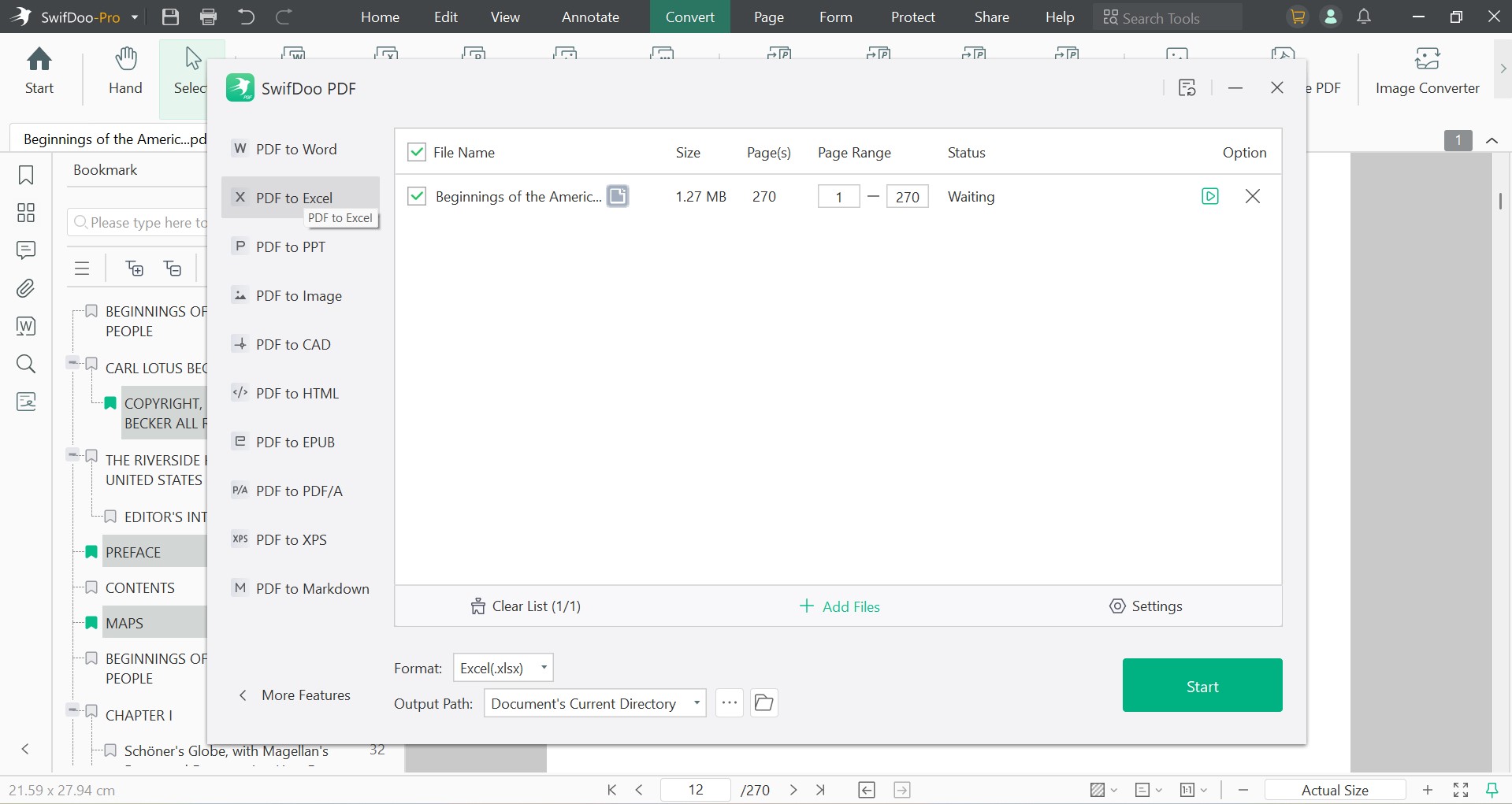
For PDF-to-Excel, I used documents containing tabular data rather than plain paragraphs.
A clean table converted well enough that the values ended up in usable spreadsheet cells. This is where the conversion actually saved me time because I did not have to copy each figure manually.
Complicated tables were less predictable. Merged cells, unusual spacing, or information positioned visually rather than in a conventional table structure could throw off the output. The numbers themselves generally came through better than the original visual formatting.
PDF to PowerPoint
I also converted a presentation-style PDF back into PowerPoint. Text and images carried over, and the overall slide structure remained recognizable. The result was usable, but I would not call it a perfect reconstruction of the source.
Some spacing changed, and elements that looked precisely aligned in the PDF occasionally needed to be nudged back into place in PowerPoint. For recovering content from a PDF presentation, however, it cut out a considerable amount of manual rebuilding.
PDF to Image
PDF-to-image was one of the cleanest conversions I tried. Pages rendered correctly as images, with text, graphics, and layout appearing as they did in the PDF.
This conversion does not have the structural problems that Word or Excel conversion can run into because the page is being rendered rather than reconstructed as editable content.
PDF to HTML and Other Formats
HTML conversion preserved the document’s content reasonably well, although I would not expect a converted PDF to turn into clean, hand-written webpage code. PDFs and webpages handle layout in fundamentally different ways, so complex page designs can produce HTML that needs work.
Needless to say, you can also go in the other direction and convert word, image, or excel to PDF.
Conclusion
Should You Use SwifDoo PDF?
There is no dearth of powerful yet pricey PDF tools. That’s why you might look for cheaper alternatives that covers the basics: editing, annotating, merging and converting PDFs. SwifDoo is the low-cost alternative that does exactly that.
It comes with no recurring fees or renewals, unless you choose their less popular monthly or two-year plans. It is more lightweight and simpler as a tool, not to mention with a lower learning curve. Most importantly, it doesn’t require you to stay connected to the cloud or even internet. You can take it offline.
However, while SwifDoo is a great choice for individuals, and that includes both students and professionals, it is not a great tool for enterprise users. If you are looking for a highly capable tool, I would suggest Foxit PDF instead.Also, let’s not forget that it’s not completely Mac-ready yet.


