
WinRAR Review: A Vintage File Archiving Utility That Still Goes Strong with Its Advanced Capabilities
You can do a lot more than extracting and zipping files with WinRAR, though. I am going to explain its functionalities, but know that everything comes through a plain, white interface that’s extremely easy to navigate.
You click around for a minute or two, and you can explore a lot of features yourself without needing to dig up tutorials or sit through hand-holding popups. That simplicity is part of the charm.
Over the past few days, I spent time digging into WinRAR beyond the usual surface-level impressions, including user discussions, security concerns, and real-world usage.
Stick around, because I’m going to break all of it down.


Pros and cons
WinRAR Pros and Cons
Features Overview
Why Did WinRAR Win Hearts?
One thing that’s easy to miss at first, as I feel, is that WinRAR isn’t locked into only RAR archives. Not even close.
Yes, the name makes it sound super specific, but the utility can unpack a ridiculous number of formats, ZIP, 7Z, TAR, GZ, ISO, CAB, ARJ, BZIP2, and a bunch more most people probably forgot even exist.
In my opinion, this flexibility is the biggest strength of the legacy utility. It ends up mattering more than you’d think once you start downloading software, mods, ROM packs, backups, or giant project folders from all over the place.
That’s actually part of why WinRAR has managed to hang around this long. It just plays nice with almost everything you throw at it.
Let’s learn more about what it can do for you.
Right-Click and Move On
You don’t need to open the app for archiving files. Once you install it, WinRAR is added to the Windows right-click menu, so you need just two clicks for compressing files.
Extraction is equally easy and straightforward.
During my test, I found no complicated setup wizard popping up every five seconds trying to “guide” me through the process, and that gave me a great peace of mind.
Yes, it feels old-school in a good way.
Surprisingly Handy Power Features
Dig a little deeper and there’s actually a lot going on under the hood.
You can split huge archives into smaller chunks for easier uploads or transfers, repair damaged archives, lock files down with AES-256 encryption, and even create self-extracting packages for people who don’t have WinRAR installed.
There’s also a recovery record feature that longtime users swear by.
Basically, it gives damaged archives a better shot at being repaired later if something gets corrupted during transfer or storage.
Not everybody will need that daily, but when you do need it, you’re really glad it’s there, isn’t it?
The Interface Actually Works
Nobody uses WinRAR because it’s gorgeous. It’s just the opposite. The interface absolutely feels so vintage! You will find small icons and plain dialog boxes everywhere.
But believe me, you will stop caring about the simplicity after some time. It’s because settings are easy to find and nothing is hidden inside menus hard to track down.
Already started loving it? You should also know that the utility opens really fast, and doesn’t try to impress you.
There’s no deal that flies in and out in the middle of a busy workday.
Fast Compression, Faster Extraction
Another thing I noticed while testing it is that WinRAR stays surprisingly lightweight even when working with large folders.
I packed up batches of images, documents, installers, and random project files without my system getting bogged down.
Compression speeds are solid, but I would like to add that extracting files takes basically no effort. It takes seconds to unpack files.
Some archive tools start feeling clunky once you throw big workloads at them. WinRAR mostly just shrugs and keeps moving.
No wonder why 500 million people worldwide are already using it.
WinRAR features comparison table with competitors
How Does WinRAR Stack up against Competitors?
| Feature | WinRAR | BreeZip | IZArc | ezyZIP |
| Platform Type | Desktop utility | Windows desktop app | Desktop utility | Browser-based web app |
| Pricing Model | Paid trialware | Free + paid upgrades | Free | Subscription + lifetime plans |
| RAR Extraction |  | | | |
| RAR Creation | | No mention | |  |
| ZIP Creation | | | | |
| 7Z Support | | | | |
| AES-256 Encryption | | Password-protected archives | | |
| Archive Repair | | Premium feature | | ZIP repair support |
| Windows Explorer Integration | | | | |
| File Conversion Features | | RAR to ZIP conversion | Archive conversion | Archive, image, audio, and video conversion |
| Supported Formats | RAR, ZIP, CAB, ARJ, LZH, TAR, GZIP, ISO, BZIP2, Z, 7Z | RAR, ZIP, 7Z, ISO, BZIP2, GZIP, TAR, XZ | 40+ formats including ZIP, RAR, 7Z, TAR, GZIP | ZIP, RAR, 7Z, plus 150+ archive/media/image formats |
Trends
Is WinRAR Trending on Search?
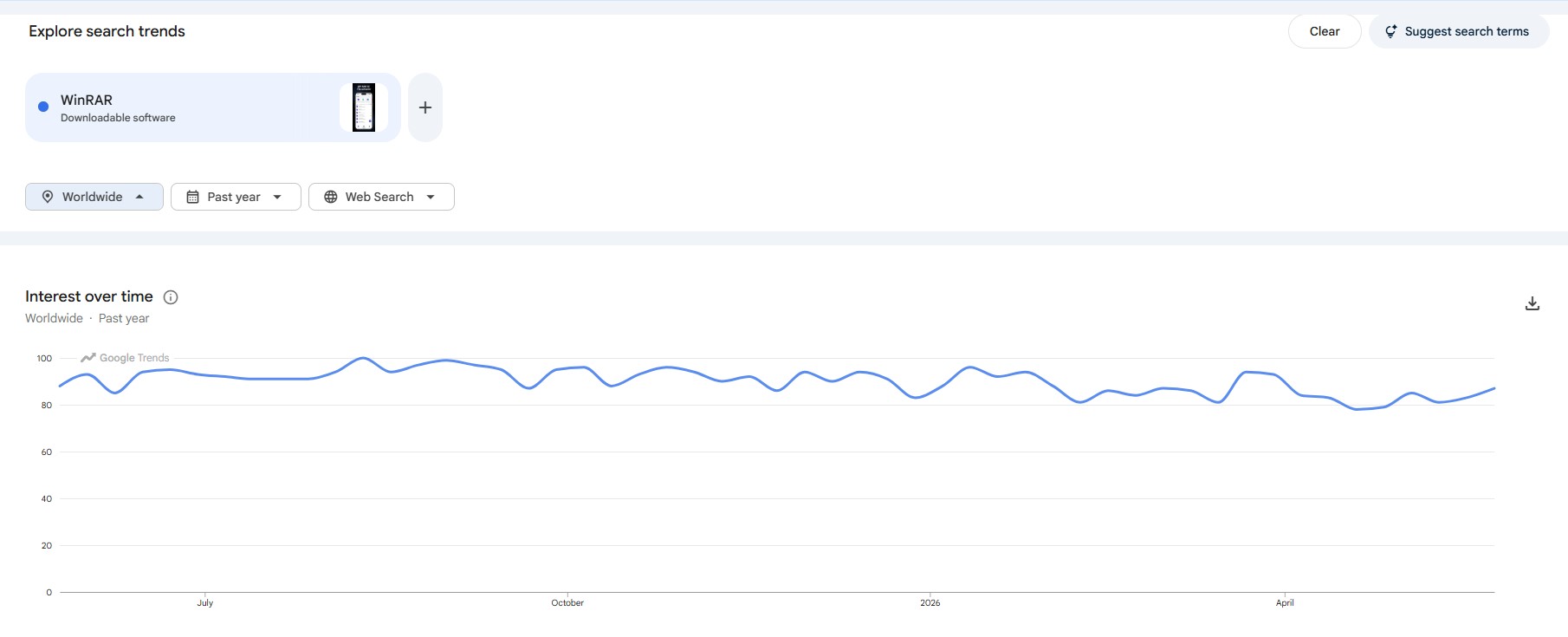
One thing I wanted to check beyond feature lists and marketing claims was simple visibility. Are people still actively looking up WinRAR, or has it quietly faded into the background while newer archive tools take over?
That’s why I ended up pulling up Google Trends and comparing WinRAR against BreeZip, ezyZIP, and IZArc worldwide over the past year.
WinRAR completely dwarfed the other three in search interest. Not by a little either. BreeZip, ezyZIP, and IZArc barely even registered on the chart most of the time, while WinRAR stayed consistently high across the entire year.
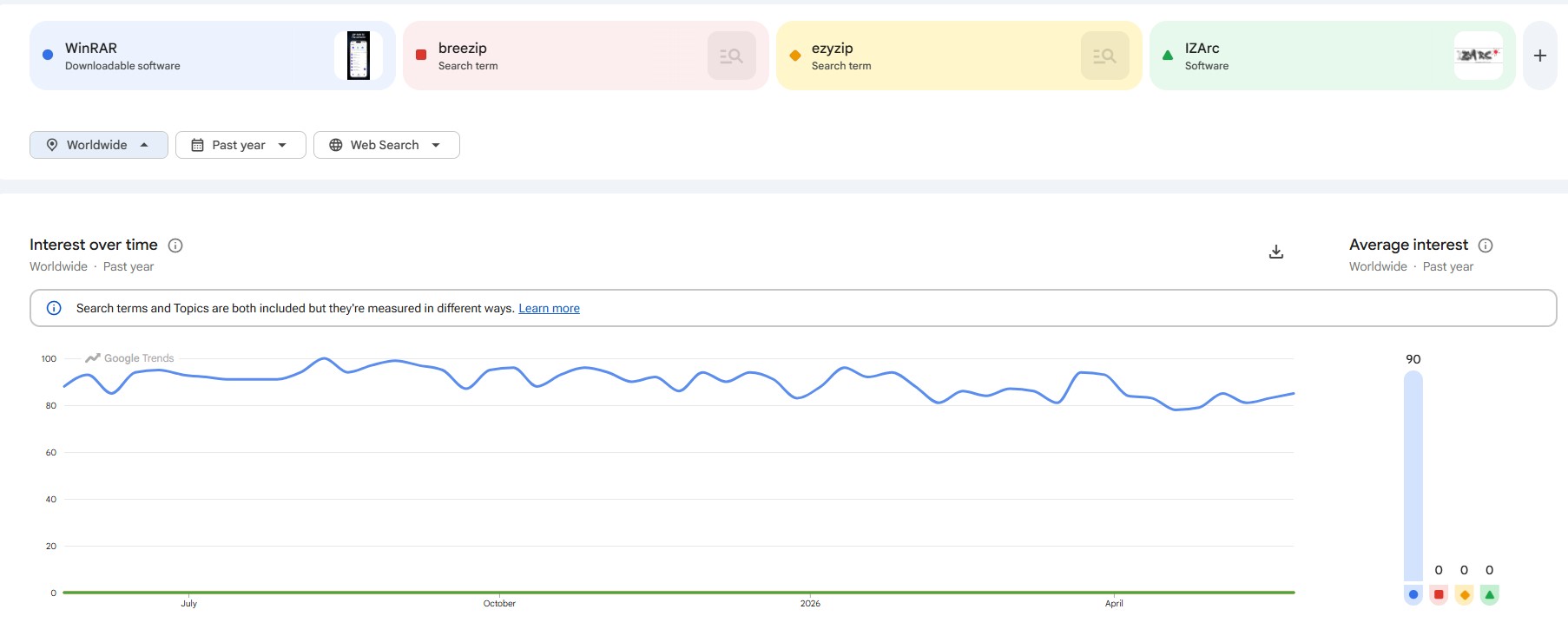
What stood out even more was consistency. WinRAR didn’t just spike because of some random news cycle and disappear again.
The search activity kept rolling along month after month, which usually says a lot about long-term user familiarity and continued relevance.
People are still downloading it, troubleshooting it, looking up passwords, and most importantly, talking about it.
Now, to be fair, Google Trends doesn’t magically prove one utility is “better” than another. That’s not really what I used it for.
Search interest mainly tells me which software still has public awareness and an active user base. And in that department, WinRAR is still miles ahead of these particular competitors.
WinRar tests
WinRAR Beyond the Numbers – Is It a Solid Performer?
I wanted to try the desktop utility first. I downloaded the free trial, installed it, and started building a sample archive. I attempted to pack in a couple images, a Word document, an installer, random stuff sitting around in one folder.
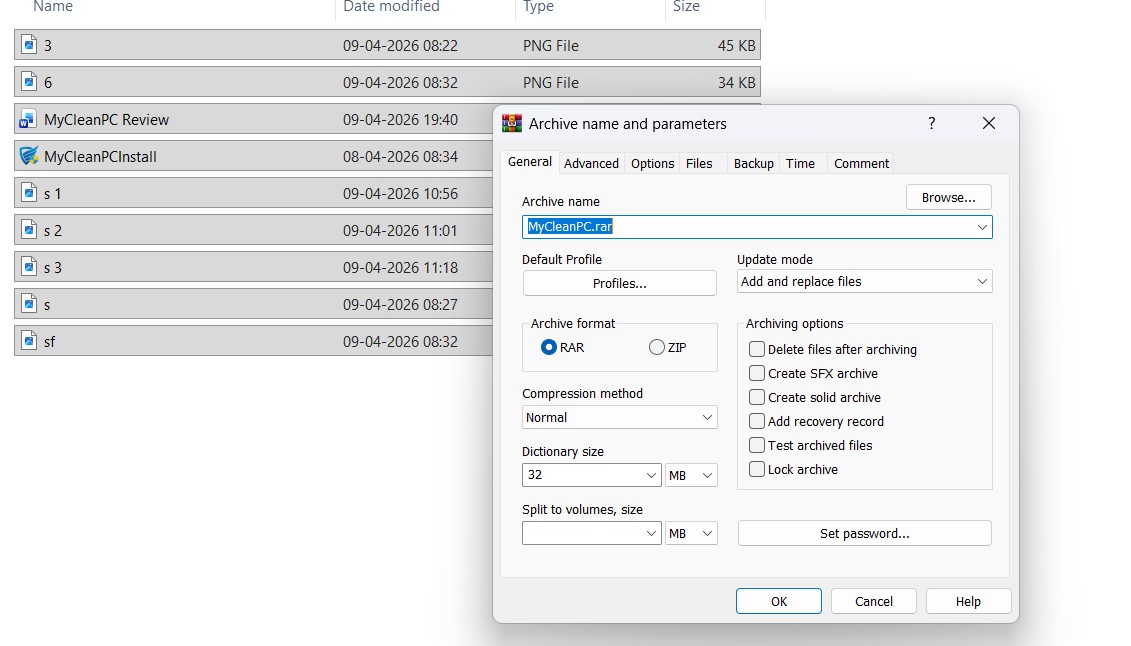
Right away, the archive setup window opened up with way more options than I expected.
At the basic level, I could choose between RAR and ZIP formats, tweak the compression method, adjust dictionary size, split the archive into volumes, and lock everything down with a password.
Pretty standard stuff. But then I started clicking through the tabs and realized WinRAR hides a ton of extra functionality under the hood.
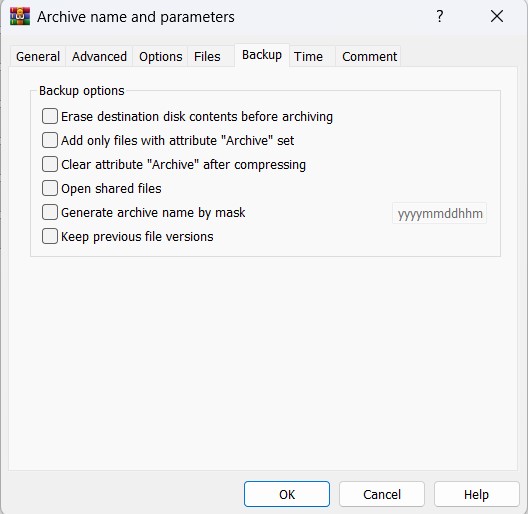
The Backup tab especially caught my attention. There were options for preserving previous file versions, generating archive names automatically, working with shared files, and even handling archive attributes after compression.
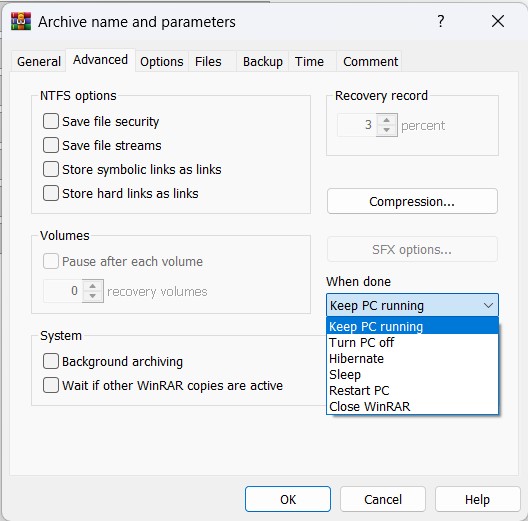
Then I wandered over to the Advanced tab. That’s where the old-school power-user energy really kicks in.
Recovery records, NTFS security settings, symbolic link handling, background archiving, recovery volumes, post-compression system actions, including putting the PC to sleep, hibernating it, shutting it down, or restarting automatically after the job finishes. That last part genuinely surprised me.
After the archive finished, WinRAR automatically opened the .RAR file inside its own interface. I could immediately browse everything inside without extracting it first, which honestly felt pretty convenient.
The toolbar was packed with everything I needed, plus so much more: extract, test archive integrity, repair functions, virus scanning, comments, protection settings, even self-extracting archive support.
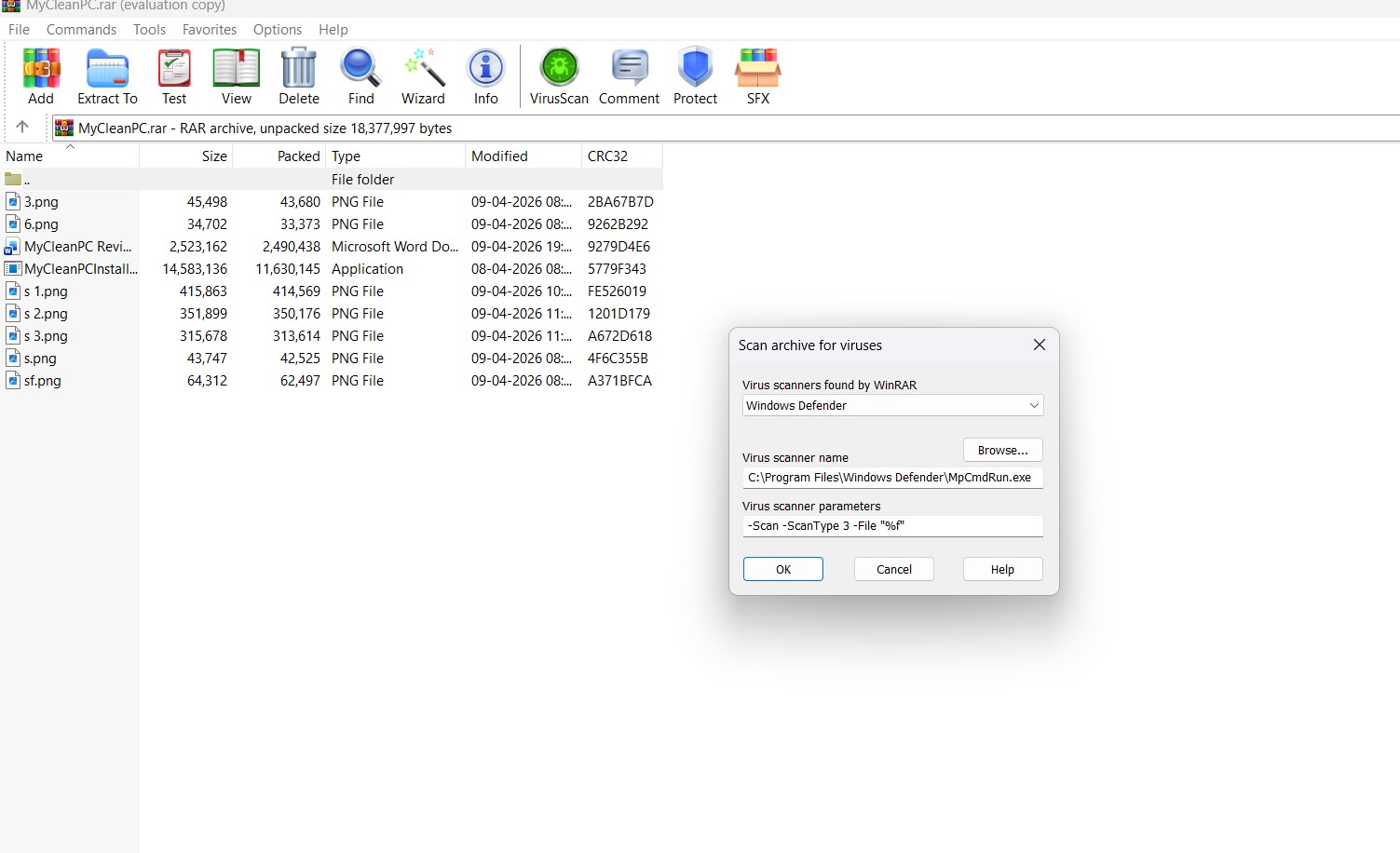
I also noticed WinRAR hooked directly into Windows Defender for virus scanning. Clicking the VirusScan option pulled up a dedicated scan window.
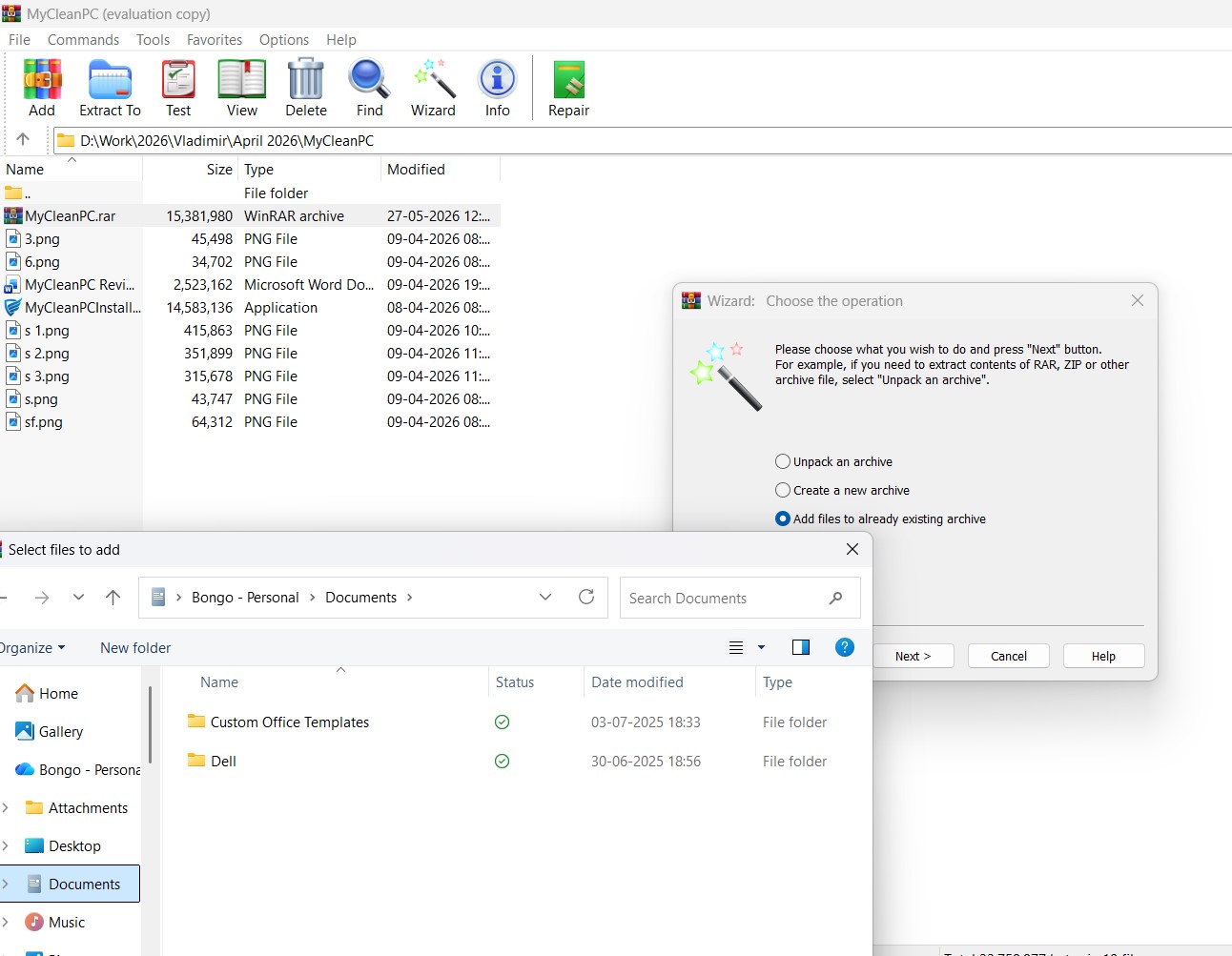
In my opinion, WinRAR doesn’t look flashy or modern. Instead, it feels like one of those old guards that’s been slowly stacking features for decades while quietly staying insanely functional underneath the menus.
What I liked about WinRar
What Puts WinRAR Ahead in the Race?
I feel the real beauty of WinRAR lies in all of the extra stuff. Sure, 95% of users use it for file compression, archiving and extracting only. But it’s the extras that you won’t usually get with many other file archiving tools.
For example, WinRAR enables user to divide and compartmentalize giant archives into smaller chunks, lock archives with passwords, and even build self-extracting packages. There’s also a recovery records feature, which can help salvage damaged archives.
Then there’re the security features. Password protection, AES-256 encryption, archive testing, quick-open records for massive RAR files, I have rarely seen so many security features in file archiving tools.
And you don’t have to buy the license to experience these security features, as the company lets its trial users explore all the premium features.
Conclusion
Should You Pay for WinRAR?
WinRAR is a legacy software. A software that disrupted the market in 1995 for multi-part archives, wide compatibility, and password protection, survived the ever-changing software market for more than 30 years! One of the reasons the company has stood the test of time is that the development team improved encryption and patched vulnerabilities quite consistently.
Today, WinRAR represents an era of personal computing that many people have started to miss already. It is a pre-cloud storage era no-nonsense tool that primarily solves one problem, and does it exceptionally well. The software is a living proof that small, lightweight, and reliable desktop utilities can conquer the internet. Want my recommendation? Definitely invest in it. You will never regret.

